Interview Brush-Up · Uptime and releases
You deployed v2. How do users get it without clearing their cache?
In one line: No-cache HTML, a CDN purge, hashed file names and old files kept: how users get v2 without clearing their cache.
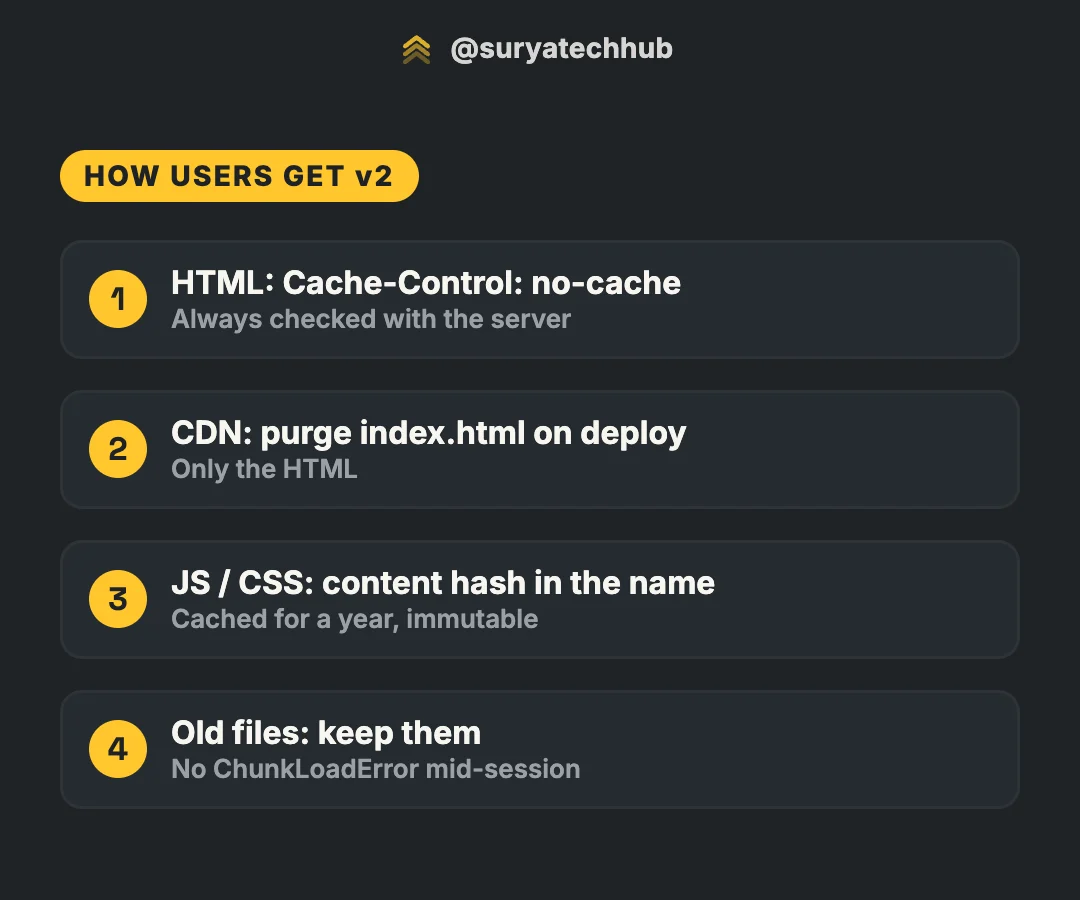
You deploy v2. But the user’s browser already has v1 cached, and so does your CDN. You can’t ask every user to clear their cache, so how do they get the new version?
Your build and deploy setup almost certainly solves this already. It’s four pieces working together, and each one is there because something broke without it:
- HTML is always checked with the server.
- The CDN copy of the HTML is purged on every deploy.
- JS and CSS get a new file name whenever their content changes, so they can be cached for a year.
- Old files are kept after a deploy, so pages that are already open keep working.
1. HTML is always checked
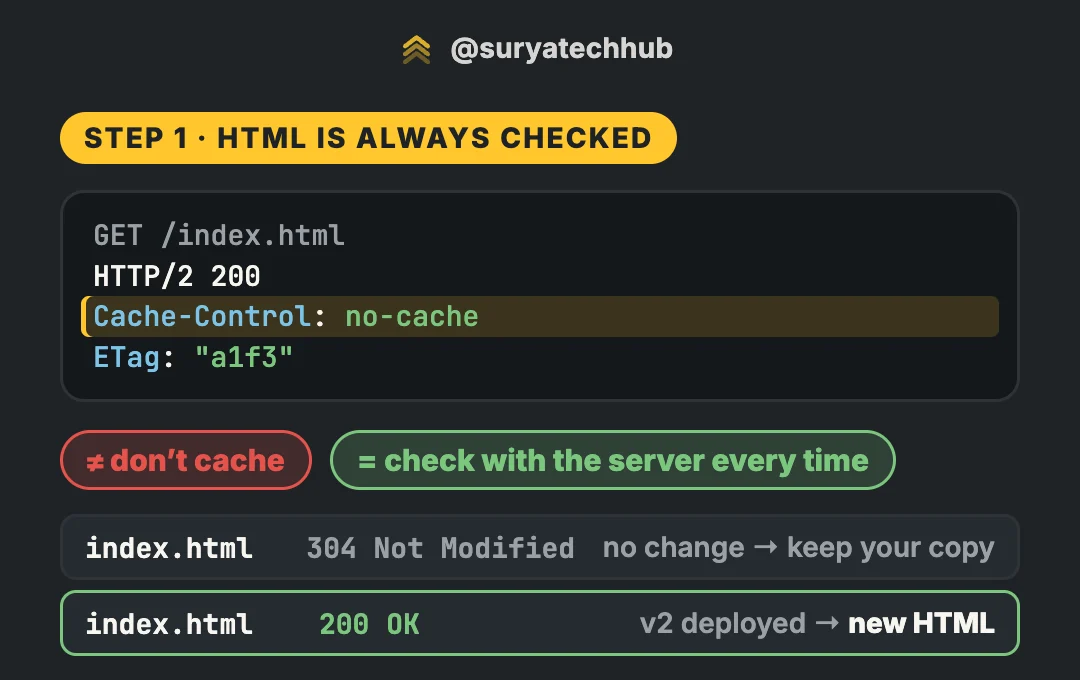
Your index.html is served with:
Cache-Control: no-cache
ETag: "a1f3"
no-cache doesn’t mean “don’t cache”. The browser does store the page. It just has to check with the server before using it. It sends the ETag it has:
GET /index.html
If-None-Match: "a1f3"
If nothing changed, the server answers 304 Not Modified with no body, and the browser uses its copy. After a deploy, the ETag no longer matches, so the server sends 200 with the new HTML.
The three directives people mix up:
| Header | Stored? | Used without asking the server? |
|---|---|---|
no-cache |
Yes | No: revalidated every time |
no-store |
No | No: downloaded in full every time |
max-age=3600 |
Yes | Yes, for an hour |
no-store works too, but throws away the cheap 304. And max-age on HTML is how you get “some users see the old site for an hour after the deploy”.
In nginx, for a single-page app:
location / {
    try_files $uri /index.html;
    add_header Cache-Control "no-cache";
}

location /assets/ {
    add_header Cache-Control "public, max-age=31536000, immutable";
}
Notice the try_files fallback. In a single-page app, /checkout and /orders/42 also return index.html. Every URL that returns the HTML needs no-cache, not just /index.html. A common bug is a long cache rule that matches the app’s routes, so the HTML stays cached under every path except /index.html.
2. The CDN is purged
The browser checks with “the server”, but the server it reaches is usually your CDN. Many setups let the CDN keep the HTML at the edge with its own TTL (a cache rule or s-maxage), so page views don’t all go back to the origin. Then the CDN keeps serving v1 until you tell it otherwise.
So the pipeline purges it after uploading the new build. Usually only the HTML:
# CloudFront
aws cloudfront create-invalidation \
  --distribution-id E2ABC123 \
  --paths "/" "/index.html"

# Cloudflare
curl -X POST "https://api.cloudflare.com/client/v4/zones/$ZONE_ID/purge_cache" \
  -H "Authorization: Bearer $CF_API_TOKEN" \
  -H "Content-Type: application/json" \
  --data '{"files":["https://example.com/","https://example.com/index.html"]}'
Purge / and /index.html. The CDN caches by URL, so they’re two separate entries even though they’re the same file. Also note that a purge takes seconds to minutes to reach every edge, not zero.
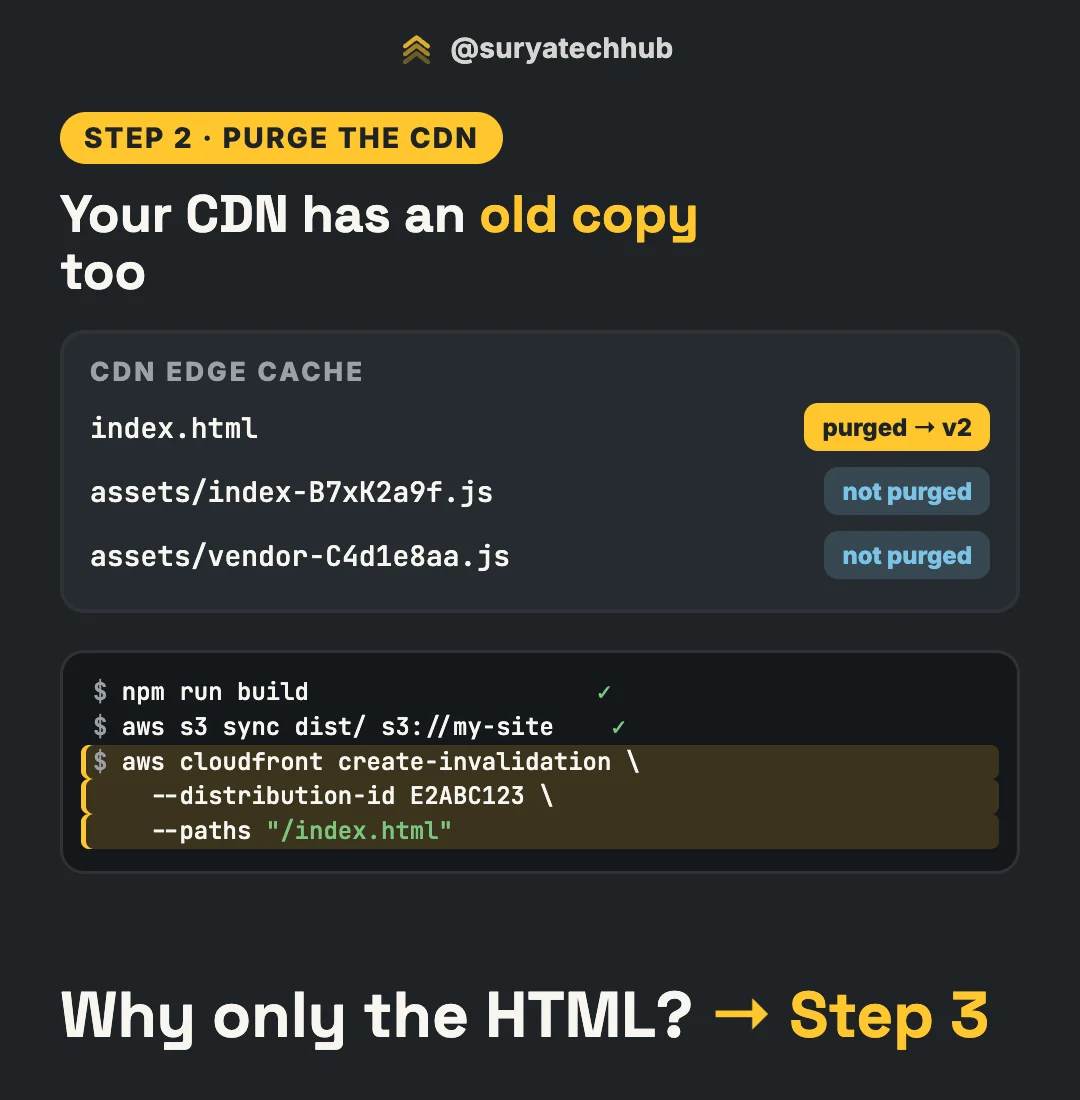
Why purge only the HTML, and not everything? Because of step 3.
Upload order matters
Upload the assets first, then the HTML, then purge. If the new HTML goes live before its JS files are uploaded, users get a page that points to files that don’t exist yet. A plain aws s3 sync dist/ … uploads in no particular order, so split it:
aws s3 sync dist/assets s3://my-site/assets \
  --cache-control "public, max-age=31536000, immutable"
aws s3 cp dist/index.html s3://my-site/index.html \
  --cache-control "no-cache"
aws cloudfront create-invalidation --distribution-id E2ABC123 --paths "/" "/index.html"
3. New code, new file name
Open your dist/ folder:
dist/
  index.html
  assets/
    index-B7xK2a9f.js
    vendor-C4d1e8aa.js
    index-D9pQ2r1m.css
That random string is a content hash: a fingerprint of the file’s contents. Change one line of your code, and the hash changes, so the file gets a new name. The new HTML points to the new name, and the browser has never seen that URL, so it downloads it. No purge needed.
Files whose content didn’t change keep their old names. If you only touched your own code, vendor-C4d1e8aa.js stays the same and users keep their cached copy. That’s the reason bundlers split vendor code into its own chunk.
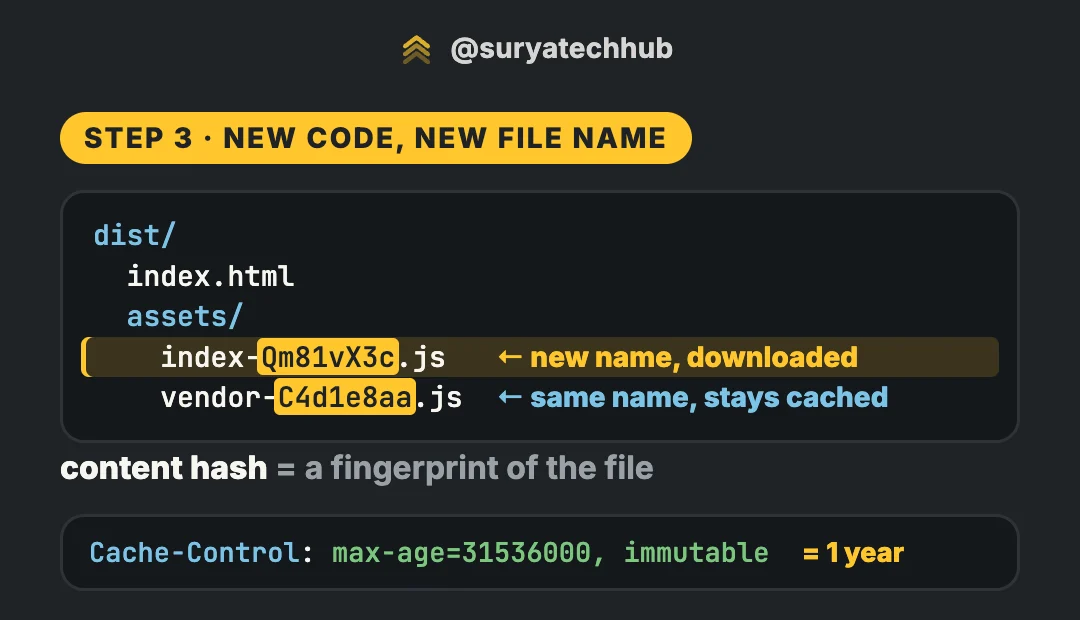
Because a hashed file’s content can never change under that name, you can cache it for as long as you like:
Cache-Control: public, max-age=31536000, immutable31536000 seconds is 365 days. immutable tells the browser not to revalidate it even when the user reloads the page.
Bundlers do this by default:
- Vite:
assets/[name]-[hash].jsout of the box. - webpack: set
output.filename: '[name].[contenthash].js'.
Two gaps to watch:
- Vite’s
public/folder is copied as-is, with no hash. Files there (favicon,robots.txt, images you reference by absolute path) must not get the one-year rule. app.js?v=2is the older way to do this. It works with browsers, but some CDN and proxy configs ignore the query string in the cache key, so a hash in the file name is safer.
4. Old files stay
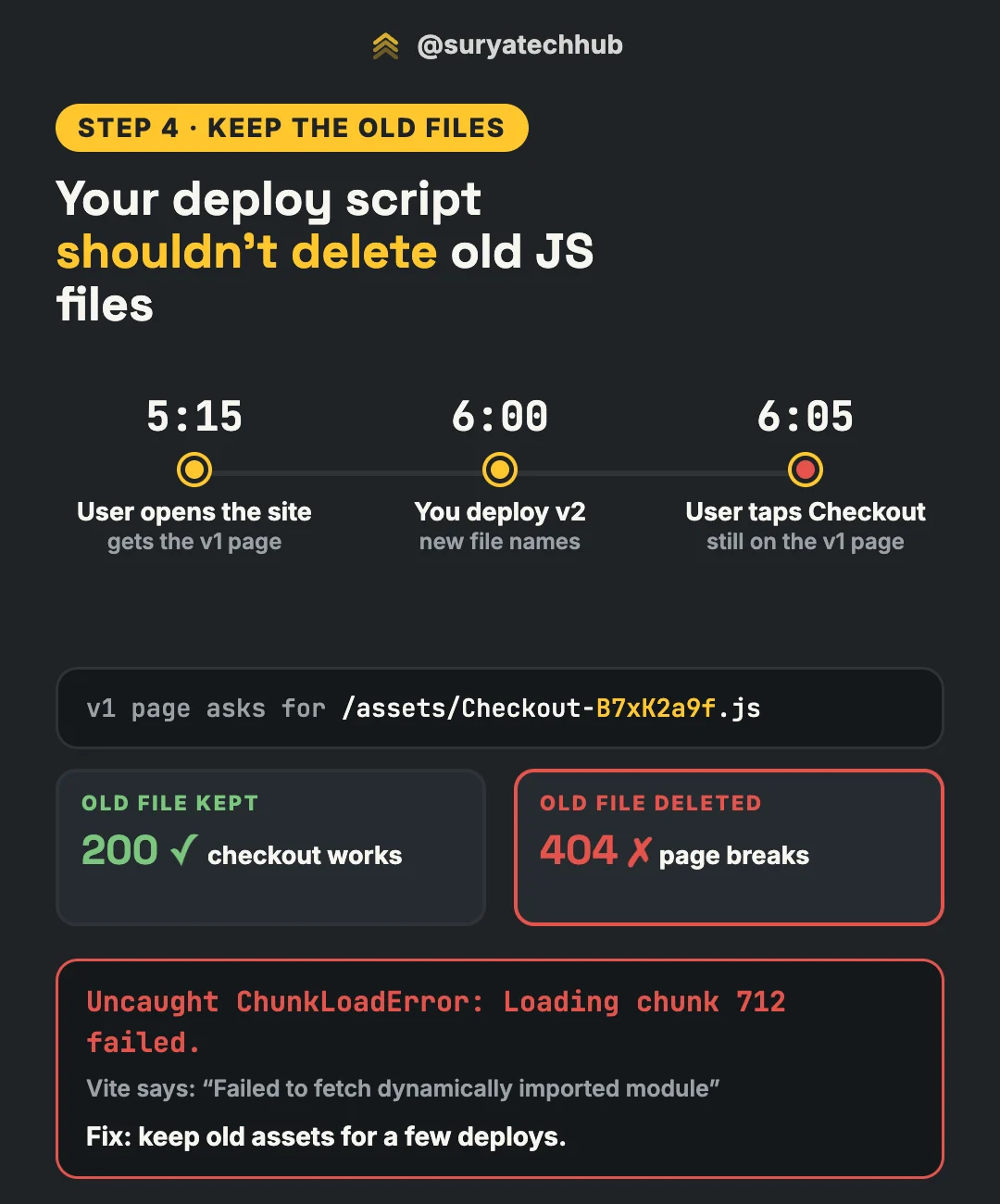
Your deploy script should not delete the previous build’s JS files. Here’s why:
- 5:15. A user opens your site and gets the v1 HTML.
- 6:00. You deploy v2. The new build has new file names.
- 6:05. The user, still on the v1 page, taps Checkout. The checkout code is split into its own chunk and loaded only when needed, so the v1 page now asks for
/assets/Checkout-B7xK2a9f.js.
If that file is still there, checkout works. If the deploy deleted it, the request returns 404 and the page breaks:
Uncaught ChunkLoadError: Loading chunk 712 failed.That’s webpack’s name for it. In Vite it shows up as Failed to fetch dynamically imported module. If you’ve seen a spike of these errors right after every deploy, this is why.
How to keep them:
- Don’t use
--deletewhen syncing the assets folder. Clean up old assets by age instead, for example with an S3 lifecycle rule, and keep them longer than your longest realistic session. Tabs stay open for days. - Watch out when the frontend is served from containers. Each image contains only its own build. During a rolling deploy, the HTML can come from a v2 pod and the chunk request can land on a v1 pod, or the other way round, and old files vanish when the old pods are gone. Serving assets from object storage behind the CDN, where every version stays, avoids both problems.
Then handle the error anyway, because a file can still go missing. Vite fires an event you can catch:
window.addEventListener('vite:preloadError', (event) => {
  if (!sessionStorage.getItem('reloaded-for-new-version')) {
    sessionStorage.setItem('reloaded-for-new-version', '1');
    event.preventDefault();      // don't throw; we're reloading
    window.location.reload();    // load the new HTML and its new chunks
  }
});
The sessionStorage flag stops it from reloading forever if the file is missing for some other reason. With webpack, catch ChunkLoadError in the error boundary around your lazy-loaded routes and do the same.
One more cache: service workers
If your app is a PWA, there’s a third cache. The service worker serves the old app shell even when the network has a new one. A new service worker installs in the background but waits until every tab using the old one is closed. Either call skipWaiting() and reload, or show a “New version available, refresh” prompt. Without one of these, users can stay on v1 for days.
What breaks when one piece is missing
| Missing | What users see |
|---|---|
| No content hash | The new HTML loads cached old JS. The UI and code don’t match, and the pay button does nothing. |
HTML cached with max-age |
The old site for as long as the max-age, after every deploy. |
| No CDN purge | The old site until the edge TTL expires, even for new visitors. |
| HTML uploaded before assets | A broken page for a few seconds or minutes during each deploy. |
| Old files deleted | ChunkLoadError for anyone who had the site open during the deploy. |
Checklist
- ✅ Every response that returns HTML (including SPA routes) →
Cache-Control: no-cache. - ✅ Hashed assets →
public, max-age=31536000, immutable. Unhashed files (public/) → short or no cache. - ✅ Deploy order: assets, then HTML, then purge
/and/index.html. - ✅ Never delete the previous build’s assets during a deploy. Clean them up by age.
- ✅ Catch chunk load errors and reload once.
- ✅ PWA → a plan for how the new service worker takes over.
None of this is new. It’s already in your setup, and someone added each piece because something broke once. Mid-level engineers keep the config. Seniors know which incident each line prevents.